Set boat performance and comfort preferences#
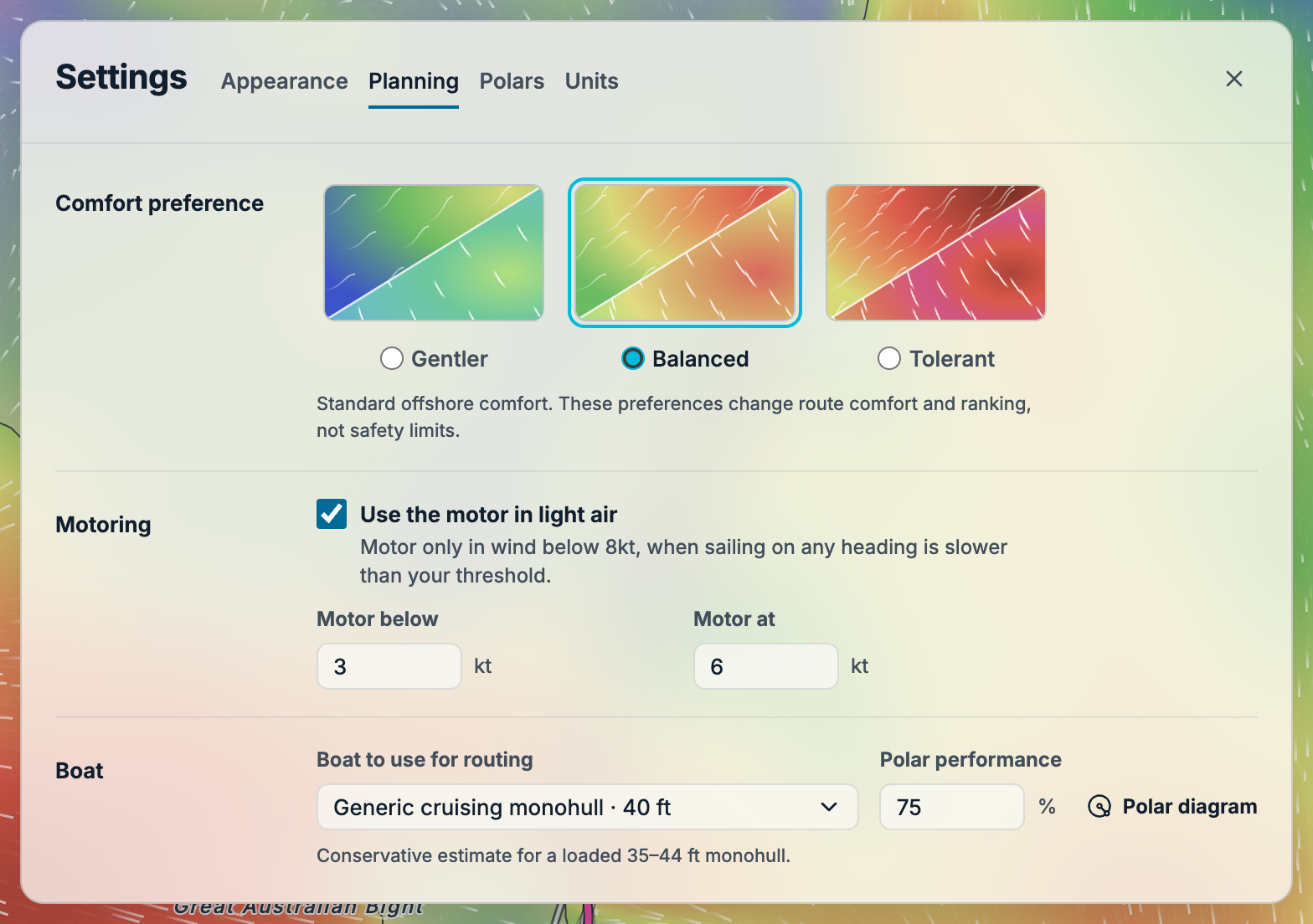
Open the map's three-line menu, choose Settings, then select Planning. This tab brings comfort, motoring and boat performance together. The default cruising monohull lets you start without entering a complete boat model, but it should be checked against your own vessel.
Choose a comfort preference#
Choose Gentler, Balanced (the default) or Tolerant. Each uses the same forecast inputs with different thresholds for conditions such as stronger wind, gustiness and higher seas. Individual comfort parameters are not currently editable. See How comfort is calculated for the three settings and the forecast inputs behind your score.
Select the thumbnail or radio button. The diagonally split wind and wave illustrations become more colourful and densely marked across the choices; they illustrate the preferences, not specific forecast conditions or numeric limits. Their colours follow the weather theme in Settings → Appearance.
Comfort preferences influence how conditions are compared. They are not certified operating limits and do not account for every hazard.
Review motoring#
Use the motor in light air enables motoring in the calculation. Set Motor below to the sailing-speed threshold and Motor at to your expected motoring speed. FairlySoon uses the motor only when sailing on every heading is slower than the threshold and wind is below 8 knots. Turning it off gives a sailing-only calculation.
Check these assumptions against your boat. The displayed speed units follow Settings → Units.
Choose the boat and performance#
Under Boat to use for routing, choose a generic monohull or catamaran, or a boat from My boats that you have already imported. Polar performance scales its expected sailing speeds: 75% uses three quarters of the polar's speeds. Reduce it if the published polar is optimistic for your boat.
A polar describes expected boat speed for combinations of wind strength and wind angle. Loading, sea state, sail choice and crew decisions can make actual speed different.
Select Polar diagram, to the right of the performance field, to inspect the selected boat in a popover. On narrow screens, use the radius icon in the same position. The chart shows the current performance adjustment. Close it with its × button, press Escape or click outside it to return to the settings.
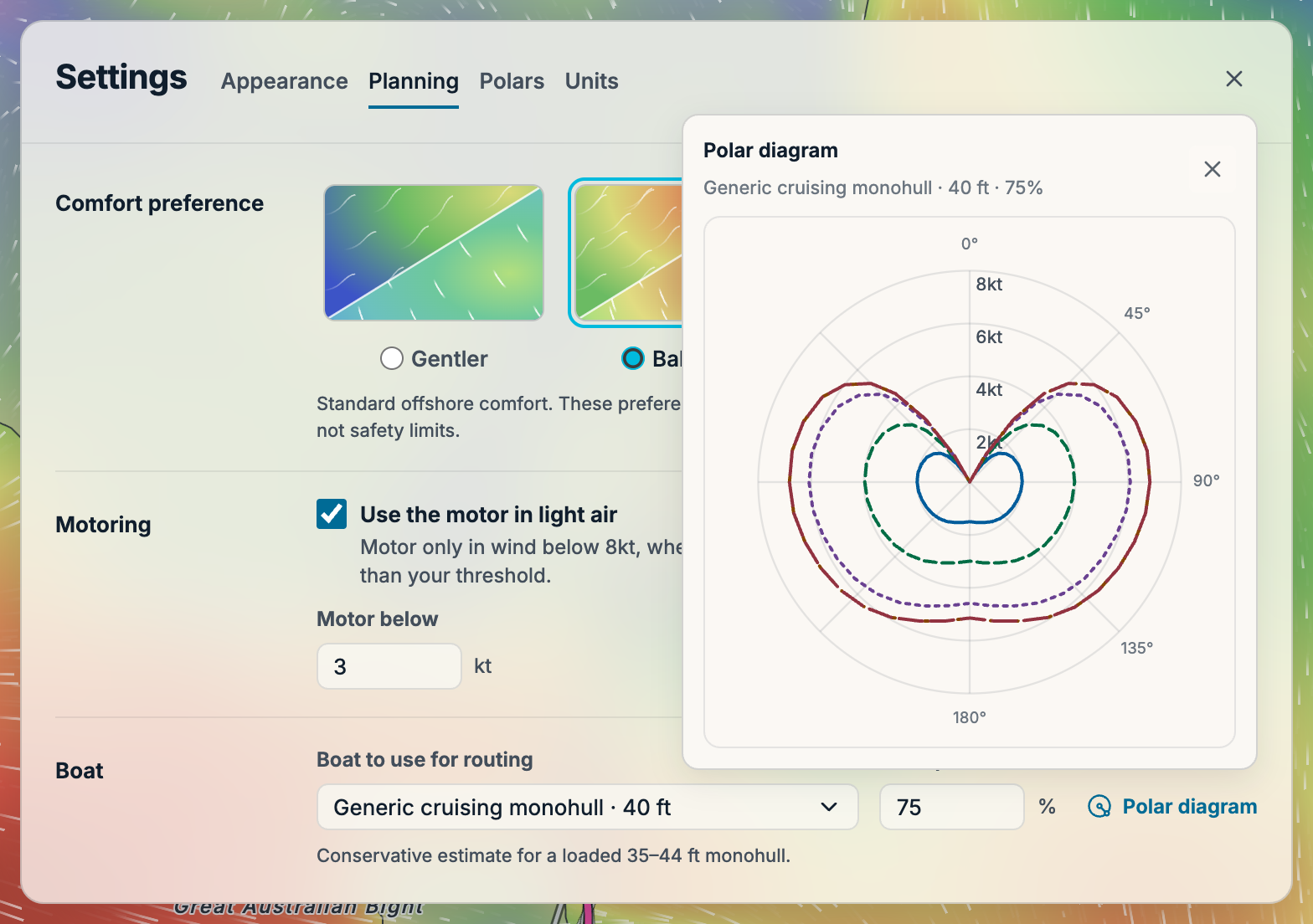
Understanding the graphs explains how to read the curves and inspect boat speeds.
Manage custom boats#
Use Settings → Polars to add, inspect, rename or delete custom boats. Saving a boat adds it to the library; choose it separately under Planning → Boat to use for routing when you want to use it.
Already have a polar in PredictWind? You can export it from PredictWind and import it into FairlySoon. See Importing a boat polar for other supported performance tables.
After changing planning assumptions, find sailing windows again to compare results for the new settings.