FairlySoon works in your browser, and you can also give it a place on your Home Screen, Dock or desktop. Open it from that icon for a dedicated window with more room for the map. No App Store download is needed.
iPhone and iPad: add from Safari#
- Open fairlysoon.com in Safari. Start from the planning map, rather than this guide.
- Open Share, the square with an upward arrow. Depending on your Safari layout, it may be inside the More menu beside the address bar.
- Choose Add to Home Screen. You may need to scroll down the share sheet. If it is missing, use Edit Actions to add it.
- Keep the name FairlySoon and leave Open as Web App switched on.
- Tap Add, then launch FairlySoon from its new Home Screen icon.
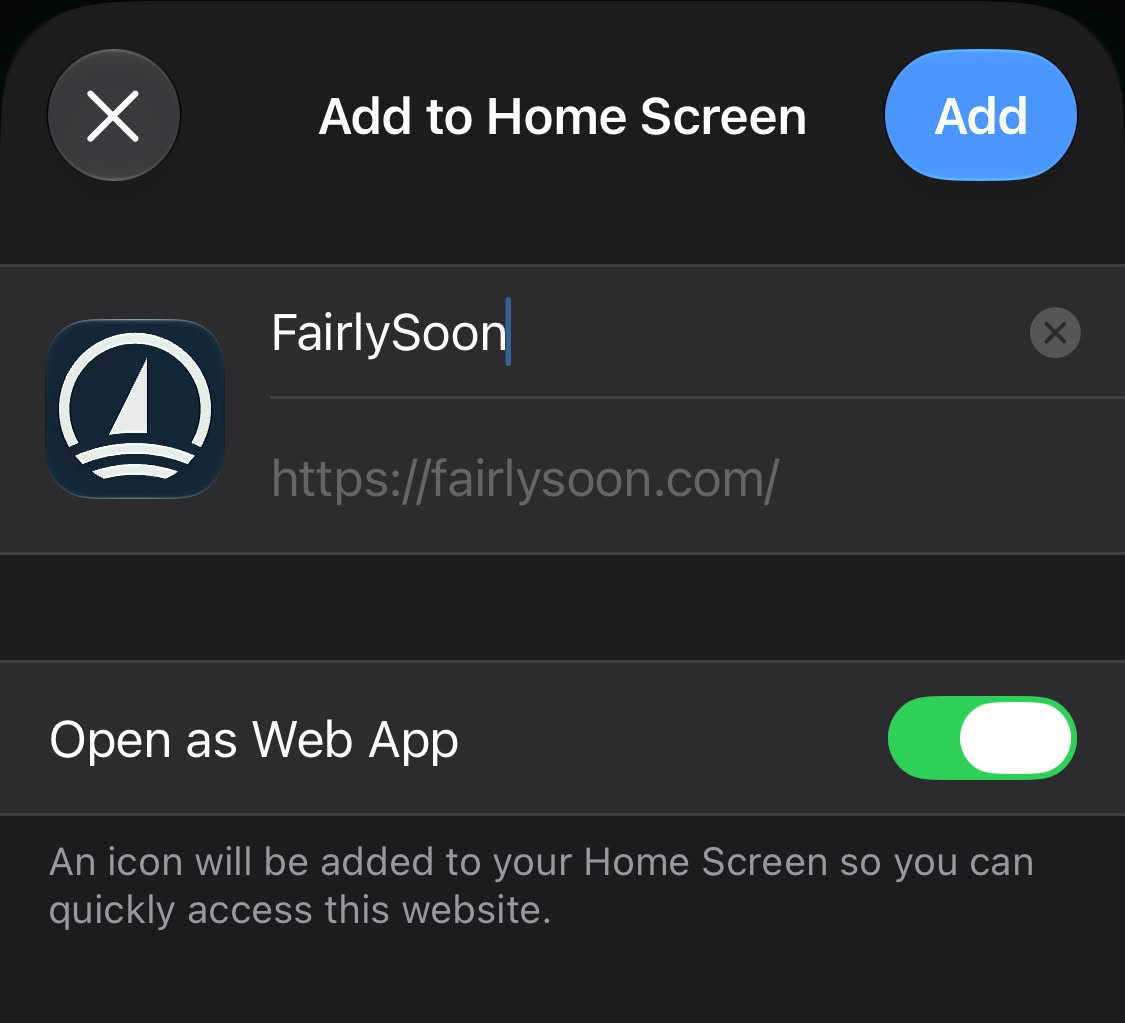
Open as Web App gives FairlySoon its own screen without Safari’s address and tab bars. The map extends behind the status bar, while the controls leave room for the status icons and home indicator. If you still see Safari’s address bar, check that you opened the new icon and enabled that switch when adding it.
For Apple’s illustrated instructions, see Turn a website into an app in Safari on iPhone. FairlySoon needs a compatible browser and device, including iOS 26 or iPadOS 26 or later for Safari; see Browser and device support.
Mac: add from Safari#
Open fairlysoon.com in Safari, then choose File → Add to Dock (also available from Share). Keep the name FairlySoon and click Add. Launch it from the Dock to use its own window. See Apple’s guide to Safari web apps on Mac.
Desktop: Chrome or Edge#
Open fairlysoon.com in your chosen browser.
- Chrome: Open the three-dot menu, then Cast, save and share → Install page as app. Confirm the installation. See Chrome’s web app guide.
- Edge: Open the three-dot menu, then More tools → Apps → Install this site as an app. You can also use the app-install icon in the address bar when it appears. See Edge’s app guide.
Menu wording can vary by browser version. Once installed, launch FairlySoon from your computer’s app launcher and pin it to your Dock, taskbar or desktop using your browser or operating system’s shortcut options.
Saved plans and offline use#
Routes and settings stay local. An installed web app can have separate storage from the browser tab, so check your saved plans in the new window before relying on them there. There is currently no account sync between them.
Installation does not download forecasts or create an offline passage pack. You still need a connection for fresh forecasts and place searches. See Saved data and offline use for what is retained on your device.