Import a polar#
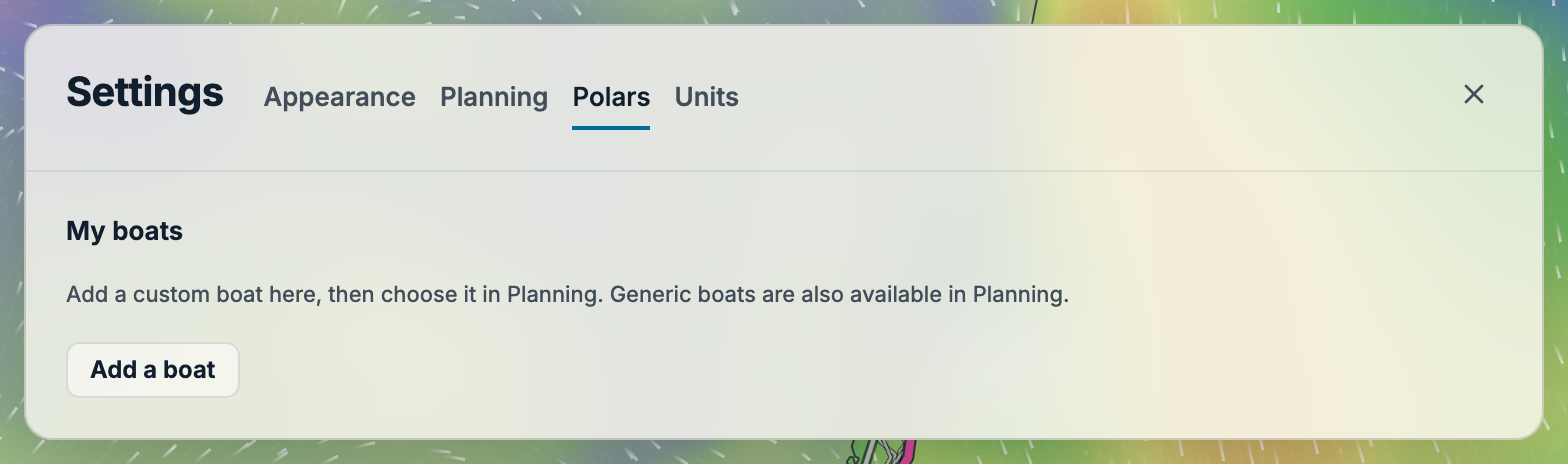
Open Settings → Polars → Add a boat. Choose a plain-text .pol, .csv or .txt table, or paste an HTTPS address for the file. A GitHub link must point to a specific file, not a folder. If the source site blocks direct loading, download the file and choose it instead.
Bring a polar from PredictWind#
Already have an advanced boat polar in PredictWind? You can export it and use it in FairlySoon without rebuilding the table.
- Sign in to the PredictWind forecast website and open Sail Routing → Routing Preferences.
- Open Advanced Polars and use the Export tab to download your polar.
- In FairlySoon, open Settings → Polars → Add a boat and choose the exported
.txtfile. No editing or conversion is needed.
See PredictWind’s import and export instructions for details of their export controls.
Imported boat speeds are kept as supplied. If the export already includes performance adjustments, set Polar performance to 100% in Settings → Planning to use those speeds without reducing them again.
Table layout and units#
PredictWind exports have no header: each row starts with true wind speed, followed by repeated true-wind-angle / boat-speed pairs. All speeds are in knots and angles are in degrees. If different rows use different angles, FairlySoon interpolates within each wind-speed curve onto a shared angle grid, preserving the supplied points.
The usual layout has true wind speeds in knots across the first row, true wind angles in degrees down the first column, and boat speeds in knots inside the table. Label the top-left cell TWA\TWS. Separate values consistently with semicolons, commas, tabs or spaces. For a comma-separated file, use decimal points.
This small example shows the layout only. Replace its illustrative speeds with your boat’s actual polar data before using it for routing:
TWA\TWS;0;6;12
0;0;0;0
45;0;4.2;6.1
90;0;5.1;7.0
180;0;4.4;6.2
Here, 6.1 means a boat speed of 6.1 knots at a true wind angle of 45° in 12 knots of true wind. Save the text as, for example, My_Arcona.pol. A spreadsheet must be exported as CSV or a text table; an Excel workbook, PDF or image of a polar diagram cannot be imported directly.
- Include at least two wind speeds and two wind angles. Each row should have one boat-speed value for every wind-speed column.
- Wind angles must be 0–180°. Wind speeds and boat speeds must be 0–100 knots. Do not repeat a wind speed or angle on its axis; the importer sorts the axes for you.
- A transposed table is also supported: put angles across the top, wind speeds down the side, and label the top-left cell
TWS\TWA. - Blank lines and comment lines beginning with
#or//are ignored.
Check the preview#
The importer reports any blank or invalid cells it estimates from other values. If missing, it adds a zero-speed 0° row and a zero-wind column, and extends the last angle row to 180°. Winds beyond the table’s highest wind speed use the final curve. Review the diagram, coverage and warnings before saving.
Give the polar a recognisable name, save it, then select it in Settings → Planning → Boat to use for routing. Polar performance scales the table’s boat speeds: 75% uses three quarters of each speed. Imported polars stay in this browser on this device.
Inspect, rename or delete a saved boat#
Open Settings → Polars and select the boat in My boats. Its detail screen shows the polar diagram. Change Boat name and select Save changes to rename it, or choose Delete boat to remove it from this browser.
Deleting the boat currently used for routing returns the selection to the default boat. Review Planning → Boat to use for routing before calculating again. Generic boats are selected in Planning and are not editable entries in the custom library.